Search 400K+ SaaS Companies From Your AI Assistant
Built For Every SaaS Professional
Whether you're prospecting, investing, researching, or building, SaaS Browser MCP gives your AI assistant real-time access to the data you need.
Marketers & Sales Teams
Build targeted prospect lists by asking your AI in plain English. No more manual filtering or switching between tools.
Investors & VCs
Spot emerging SaaS companies before they hit mainstream radar. Filter by age, growth trajectory, and market signals.
Researchers & Analysts
Query the entire SaaS market in seconds. Get structured data on categories, technologies, pricing models, and market dynamics.
SaaS Founders
Validate ideas, study competitors, and find partnership opportunities. Understand exactly who else is building in your space.
Affiliate Marketers
Find high-commission affiliate programs with one prompt. Filter by commission type, cookie duration, and product category.
Developers & AI Builders
Build AI-powered SaaS research tools on top of the MCP server. Integrate live SaaS market data into your own AI workflows.
What You Get
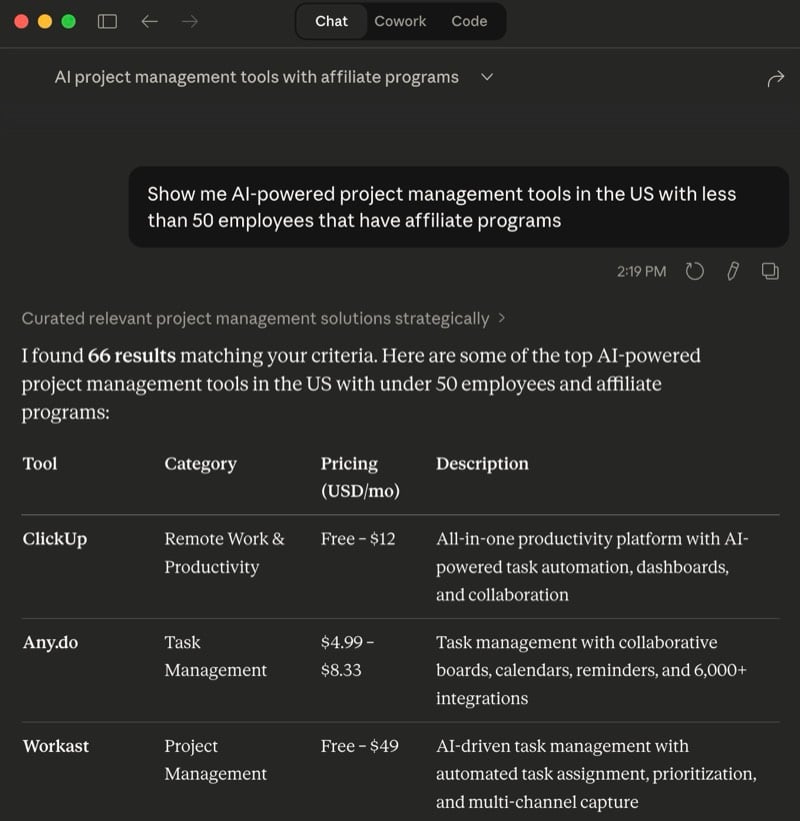
Natural Language Search
Ask questions the way you think. Your AI translates your intent into precise, filtered queries across the entire SaaS database.
Try asking:
"Show me AI-powered project management tools in the US with less than 50 employees that have affiliate programs"
40+ Filterable Data Points
Every search parameter available on the web interface is available through MCP. Combine any filters for precision targeting.
Built-in Resources
Your AI automatically gets access to reference data for building accurate queries.
Completely Free
No API keys to copy or paste, and nothing to pay. Connect your assistant and start searching.
Free to get started, upgrade any time
Add SaaS Browser to Your AI
Takes less than 2 minutes. Choose your AI assistant below.
Claude (Anthropic)
Claude apps (web, desktop, and mobile)
- 1 Open Claude on the web, desktop, or mobile and go to Settings, then "Connectors"
- 2 Click "+", then "Add custom connector"
- 3 Paste the URL below and leave Advanced settings empty - no authentication is required
- 4 Click "Add". On Team and Enterprise plans an owner adds it first under Organization settings, then "Connectors"
- 5 In any chat, click "+", then "Connectors", and switch on SaaS Browser
https://saasbrowser.com/mcp
Claude Code (CLI)
- 1 Run this command in your terminal:
- 2 Type "/mcp" inside Claude Code to confirm the server is connected
claude mcp add --transport http saas-browser https://saasbrowser.com/mcp
ChatGPT (OpenAI)
Available to ChatGPT Plus, Pro, Business, Enterprise, and Edu users on the web.
- 1 Open ChatGPT and go to Settings, then "Apps & Connectors" (named "Connectors" in older builds)
- 2 Open "Advanced settings" and turn on "Developer mode"
- 3 Back on the Apps & Connectors page, click "Create"
- 4 Name it "SaaS Browser", paste the MCP server URL below, and set Authentication to "No authentication"
- 5 Confirm that you trust the application, then click "Create"
- 6 In a chat, click "+", then "More", then "Developer mode", and select SaaS Browser
https://saasbrowser.com/mcp
Gemini (Google)
Custom MCP servers work in Gemini CLI and Gemini Code Assist. The consumer Gemini app does not support custom MCP servers yet.
- 1 Install Gemini CLI, then run:
- 2 Or add the server to ~/.gemini/settings.json by hand:
- 3 Run "/mcp" inside Gemini CLI to confirm the tools are loaded
gemini mcp add --transport http saas-browser https://saasbrowser.com/mcp
{
  "mcpServers": {
    "saas-browser": {
      "httpUrl": "https://saasbrowser.com/mcp"
    }
  }
}
Cursor
- 1 Open Settings, then "Tools & MCP", then "Add Custom MCP"
- 2 Add the entry below to .cursor/mcp.json for one project, or ~/.cursor/mcp.json for every project:
- 3 Restart Cursor - the server should turn green with its tools listed
{
  "mcpServers": {
    "saas-browser": {
      "url": "https://saasbrowser.com/mcp"
    }
  }
}
Windsurf
- 1 Open the Cascade panel and click the MCP icon, then "Manage MCPs"
- 2 Click "View raw config" to open ~/.codeium/windsurf/mcp_config.json
- 3 Add the entry below, then click "Refresh":
{
  "mcpServers": {
    "saas-browser": {
      "serverUrl": "https://saasbrowser.com/mcp"
    }
  }
}
VS Code (GitHub Copilot)
- 1 Open the Command Palette and run "MCP: Add Server"
- 2 Choose "HTTP (HTTP or Server-Sent Events)" and paste https://saasbrowser.com/mcp
- 3 Name it "saas-browser" and choose Workspace or Global - or write .vscode/mcp.json yourself
- 4 Open Copilot Chat in Agent mode and enable the SaaS Browser tools from the "Tools" menu
{
  "servers": {
    "saas-browser": {
      "type": "http",
      "url": "https://saasbrowser.com/mcp"
    }
  }
}
Other MCP Clients
Any MCP-compatible client can connect to SaaS Browser. Point it at the following streamable HTTP endpoint, with no authentication:
https://saasbrowser.com/mcp
Example Prompts to Try
"Find SaaS companies in the CRM category with over 100 employees"
"Show me recently launched AI tools in Europe"
"What SaaS products use Stripe and have affiliate programs with over 20% commission?"
"Find the fastest-growing SaaS in the US by domain rating growth"
"List project management tools under $50/month that have an API"
"Show me SaaS companies in Germany using React with less than 10 employees"
Give Your AI Access to the SaaS Market
Set up in under 2 minutes, free. Start searching 400K+ SaaS companies from your AI assistant today.
Get Started Now